Web Dashboard
The web dashboard is always included with the Docker setup. It provides a full management interface - everything can be configured, inspected, and triggered from the UI without ever touching a config file, JSON, or terminal.
Running without Docker?
You can run the web dashboard manually too:
This starts the same dashboard athttp://localhost:2002. You'll still need to handle process management yourself (e.g., keep it running via systemd or screen).
The pybabel compile step is required because the compiled .mo catalogs are gitignored - without them, Flask-Babel falls back to source strings and the language dropdown won't switch locales. The Docker image runs this automatically during build.
Dashboard Features
- Playlist tab - View every track in your synced playlist with its matched YouTube Music link, source (cache/search/override), and status badges. Filter by overrides, blacklisted, or pending retry. Use Show Graph to plot each track's recency/play score against its playlist position. Use Export to download the playlist as M3U, CSV, or JSON (see Exporting Playlists).
- Overrides tab - Add, edit, or remove manual search overrides directly. Paste a YouTube Music URL or video ID and the dashboard extracts and validates it.
- Blacklist tab - Manage blacklisted tracks from the UI. Blacklisted tracks are excluded entirely from playlist generation. Blacklist Artist excludes every track by an artist (the artist blacklist also applies to custom playlists; each playlist additionally supports its own per-artist blacklist in the editor).
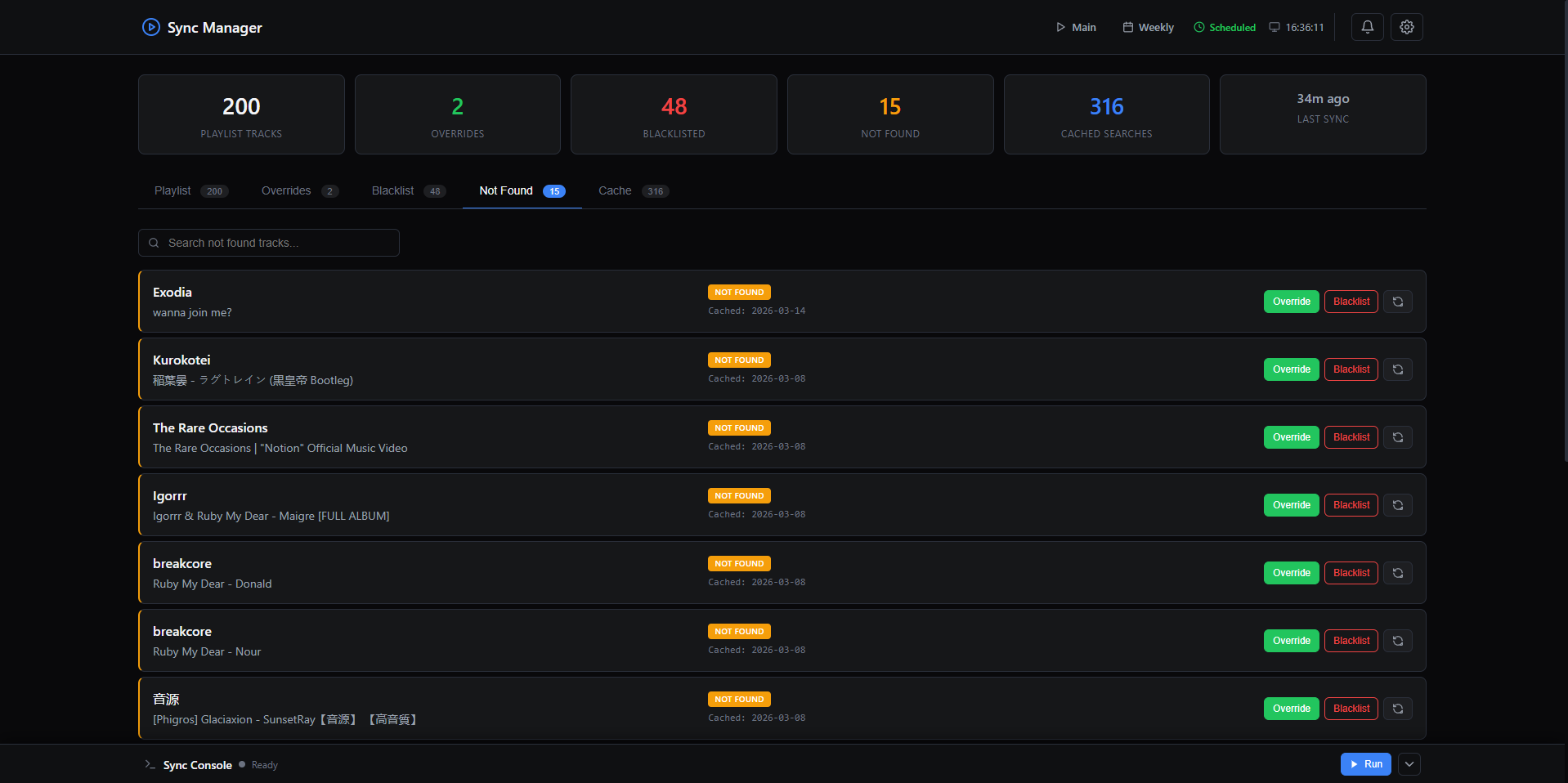
- Not Found tab - See all tracks where the search couldn't find a match. One-click to add an override or blacklist entry for any of them.
Screenshot: Not Found tab
- Cache tab - Browse all cached search results, see which video each track resolved to, and clear individual entries or the full cache.
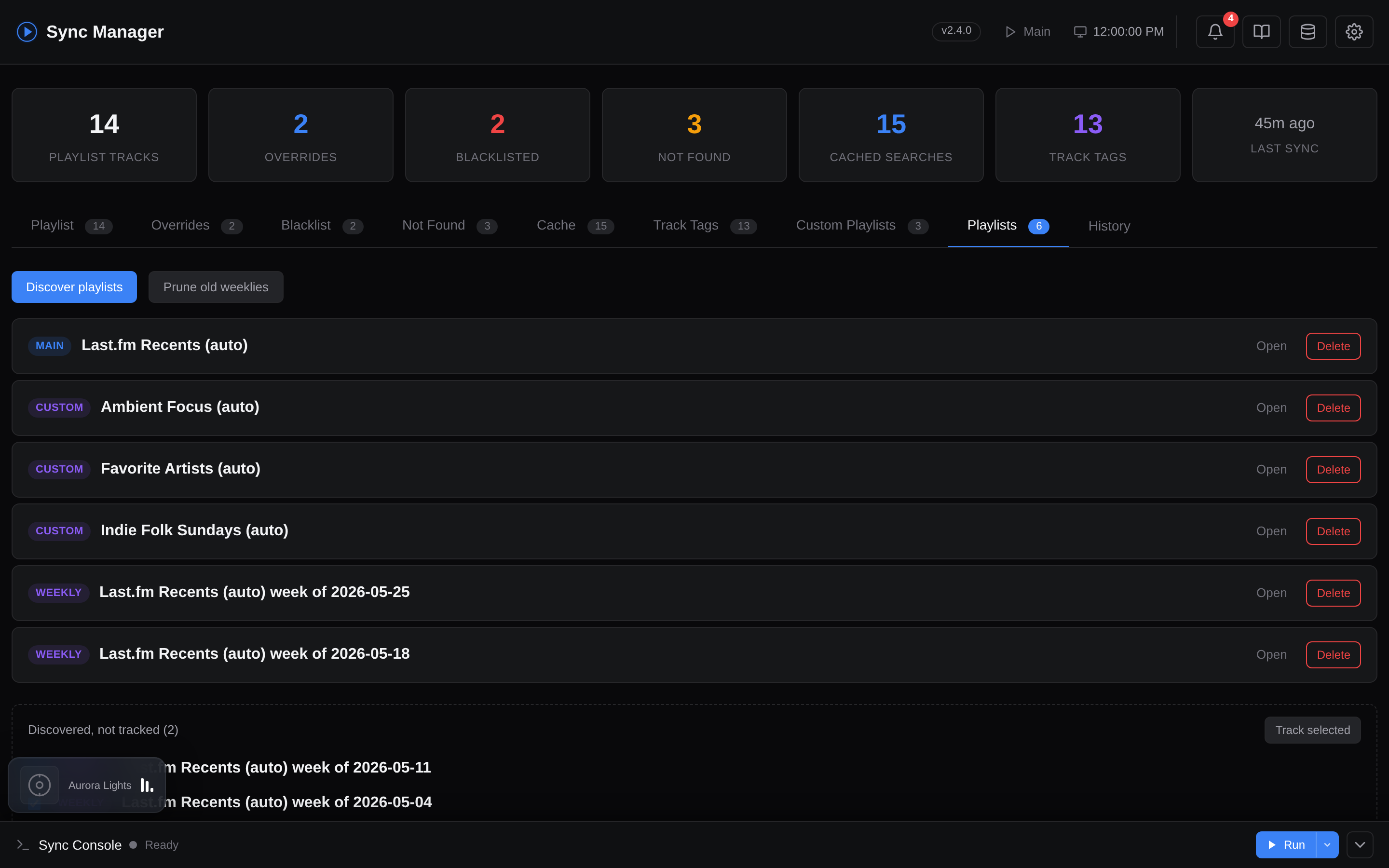
- Playlists tab - Manage the playlists this tool created on YouTube Music. On open it lists everything already in the playlist cache (main, weekly, custom), tagged by category. Discover playlists scans your library for autogenerated playlists that aren't tracked yet (e.g. ones created before caching, or renamed) and lets you tick which to track - IDs only, leaving templates intact. Each card has Open (YouTube Music) and Delete (removes from YTM and cache). Prune old weeklies deletes weekly snapshots beyond
WEEKLY_KEEP_WEEKSon demand (this also happens automatically every main sync). Deletes are irreversible and require valid YTM auth.
Screenshot: Playlists tab
- Cache management modal - Header button (database icon) opens a dedicated modal with three tabs: Search cache (bulk select/delete entries, clear all not-found, clear everything), Tag cache (filter by artist/title/tag name, bulk delete), and Playlist cache (expand each cached playlist, remove individual tracks or whole playlist entries). Use this for surgical cleanup when a single bad cache entry is causing repeated wrong matches.
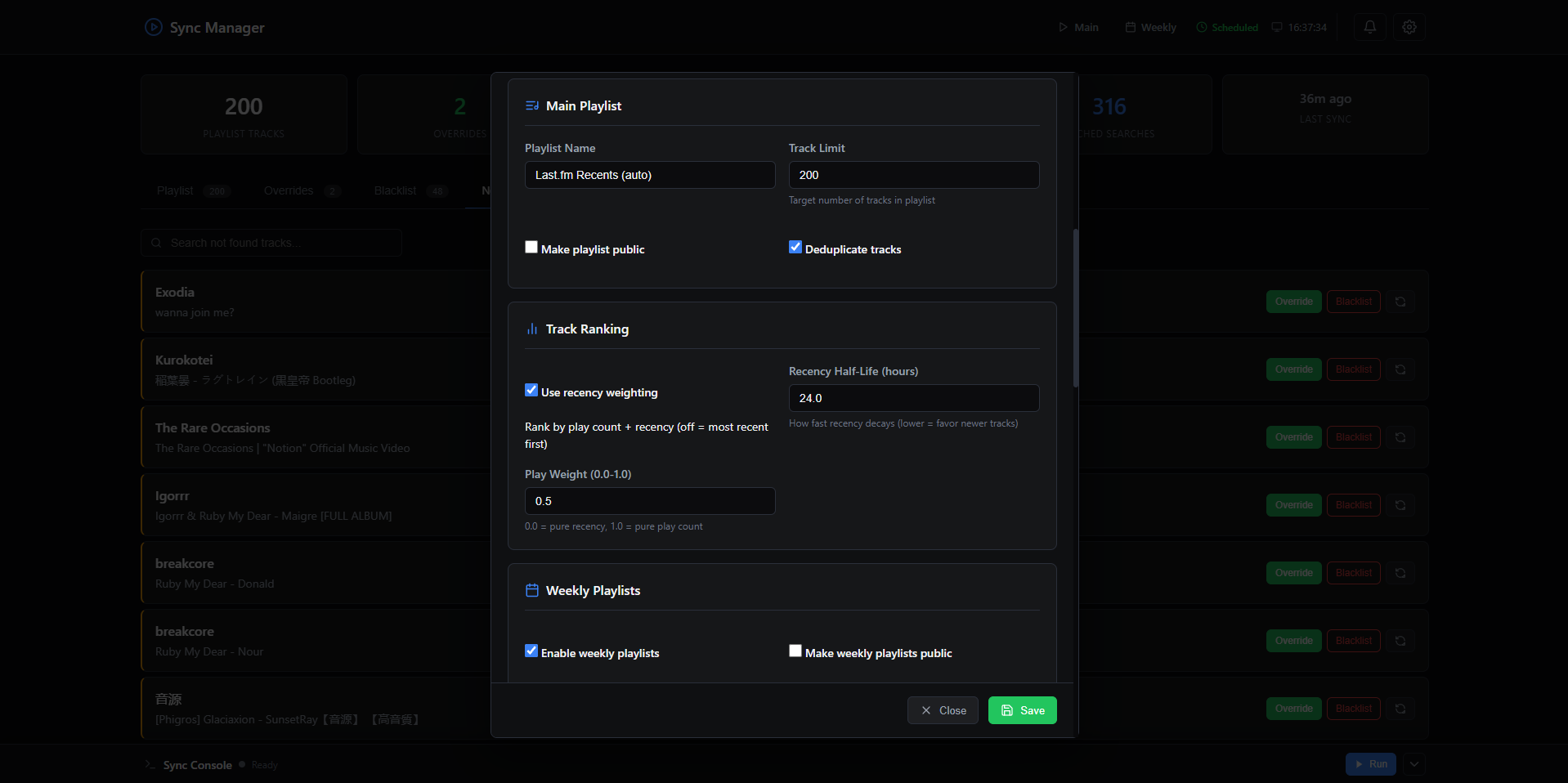
- Settings modal - Edit all configuration (Last.fm credentials, playlist options, search tuning, weekly settings, etc.) without touching
.env. Changes take effect on the next sync.
Screenshot: Settings modal
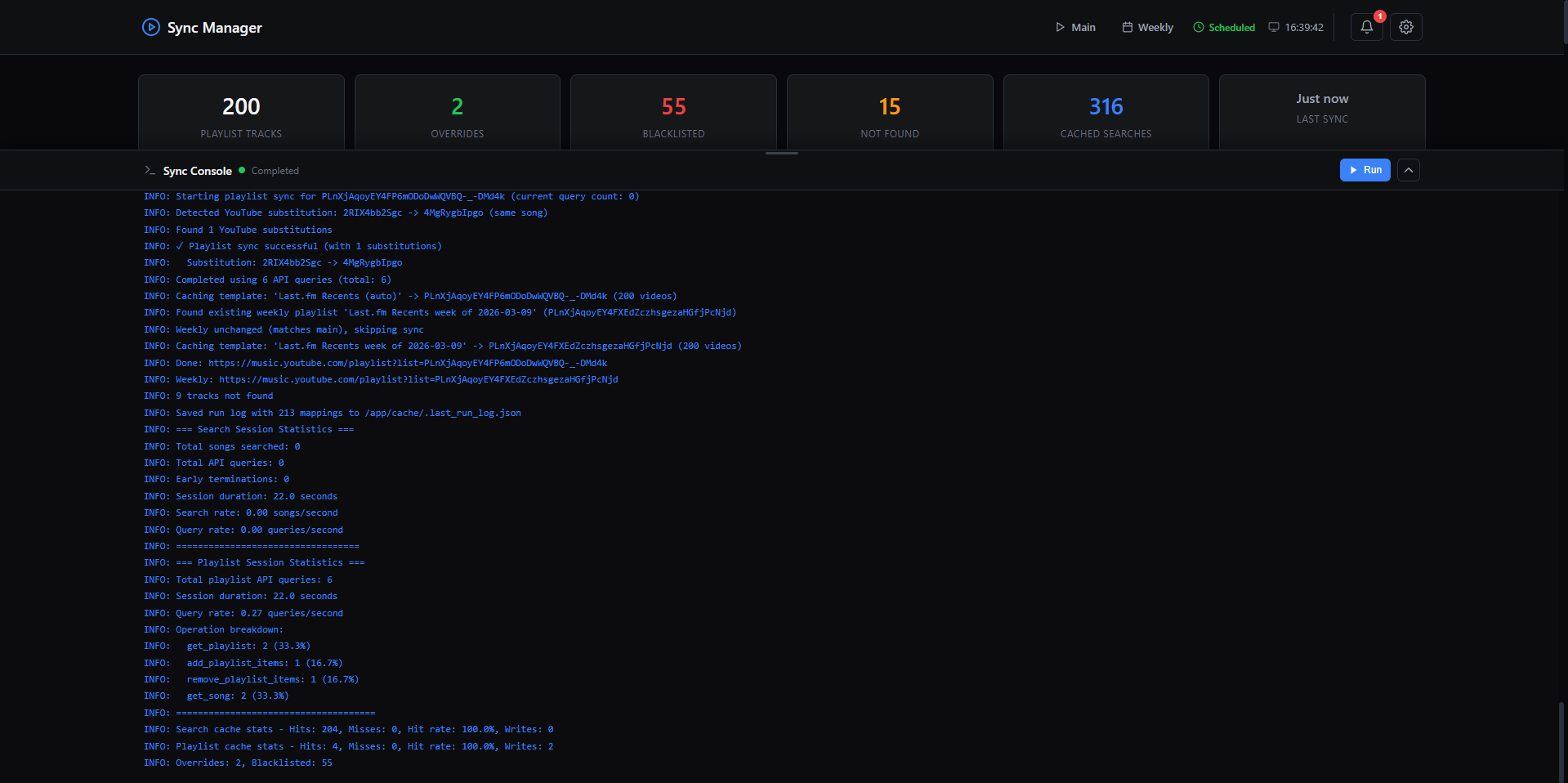
- Sync console - Trigger a sync manually and watch real-time output in a resizable terminal drawer. Stop a running sync at any time. If you reload the page mid-sync, the console automatically reattaches to the running stream instead of going idle.
- Preview sync (dry run) - A Preview button (flask icon) sits to the left of the Run button in the sync console, and next to each custom playlist card's Sync button. Clicking it resolves tracks as usual but never touches YouTube Music; instead it opens a preview summarising, per playlist, the tracks that would be added (with match score and play count where available) and removed, plus whether the playlist would be reordered. Preview is a one-off action, not a mode - the plain Run/Sync buttons always apply changes immediately, and there is no state to remember or reset. The Sync Multiple... dialog has its own per-run dry-run toggle. Click Apply Sync in the preview to run the same sync for real. From the CLI, set
SYNC_DRY_RUN=1(see CLI Install). - Update pill - The header shows your current build (
vX.Y.Zon stable,dev·<sha>on dev) and lights up when an update is available. On stable that means a newer release tag has been published, and clicking the pill opens the GitHub release/changelog. On dev it means the upstreammainbranch has new commits since your build, and clicking the pill opens the GitHub commit compare view (or the branch's commit log when the build SHA isn't known). The check runs against the GitHub API and is cached on disk for 6h. See Release Channels and Updating.
Screenshot: Sync console
- Stats bar - At-a-glance counts: playlist tracks, overrides, blacklisted, not found, cached searches, and last sync time.
- YTM authentication - Run
ytmusicapi browserauthentication interactively through the web UI - no terminal access needed. - First-time setup wizard - Guides you through
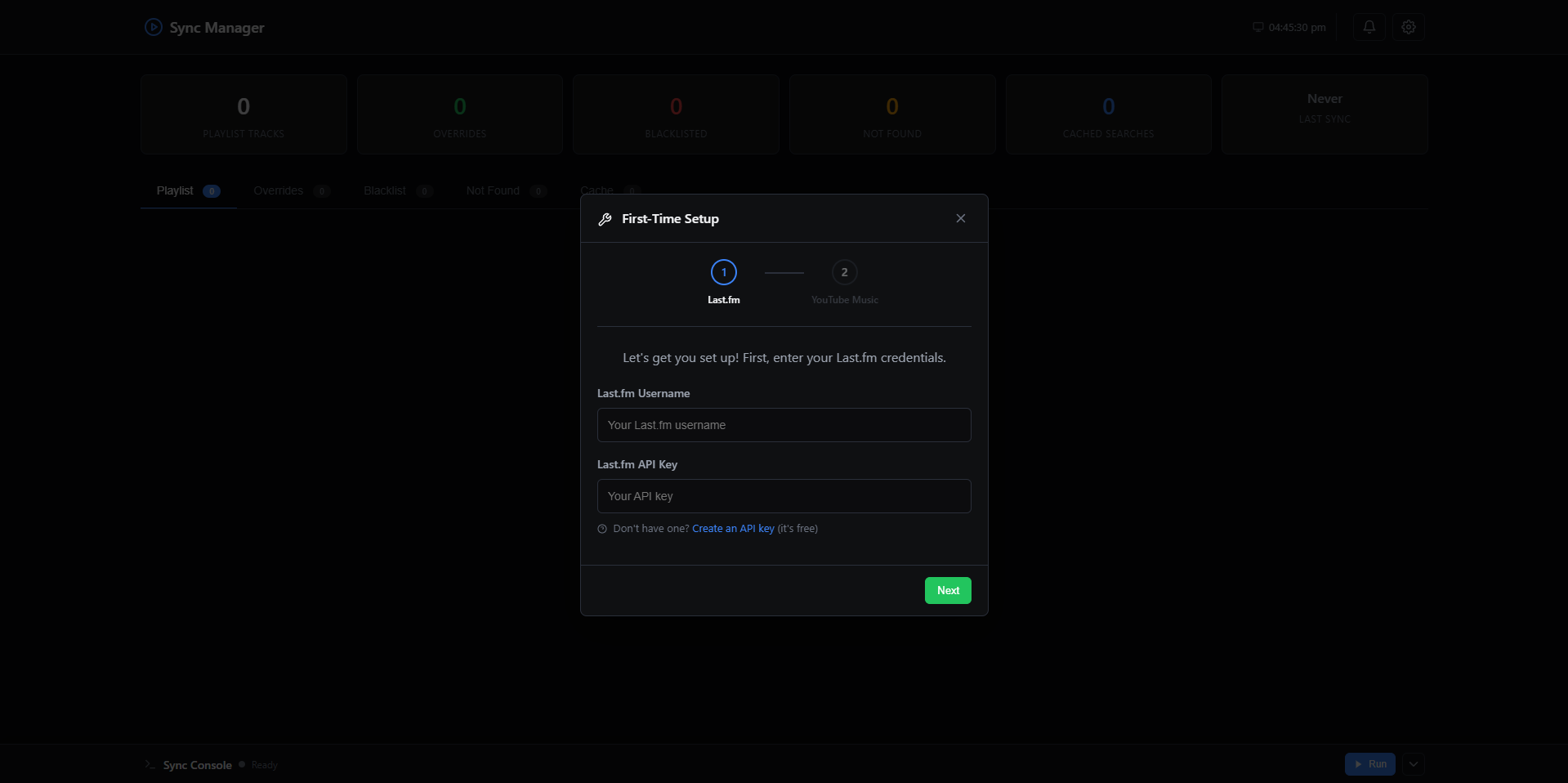
.envcreation, Last.fm credentials, and YouTube Music auth on first launch.
Screenshot: Setup wizard
Exporting Playlists
Download the tracks of any synced playlist as a portable file, straight from the dashboard. This is handy for backups, importing into another player, or sharing a snapshot of what the tool built.
- Main playlist - the Export button in the Playlist tab toolbar (next to Show Graph) offers M3U, CSV, and JSON.
- Custom playlists - each card in the Custom Playlists tab has its own Export button (download icon, next to Edit) with the same three formats.
Exports are read from the playlist cache - they reflect the last synced state, so run a sync first if you want the freshest data. Track artist/title are resolved from the search cache and manual overrides.
| Format | Extension | Contents |
|---|---|---|
| M3U | .m3u8 |
Extended M3U with #EXTINF lines and one https://music.youtube.com/watch?v=… URL per track. Opens in most media players. |
| CSV | .csv |
Header row artist,title,video_id,yt_title,url plus one row per track. Ideal for spreadsheets or scripting. |
| JSON | .json |
Structured document with playlist, track_count, and a tracks array (each with artist, title, video_id, yt_title, url). |
Under the hood the dashboard hits GET /api/playlist/export?name=<playlist>&format=<fmt> (the main playlist name is filled in automatically) and GET /api/custom-playlists/<index>/export?format=<fmt> for custom playlists. A playlist with no cached tracks returns 404; an unknown format returns 400.
Integrated Scheduler
The web dashboard includes a built-in scheduler (powered by APScheduler) so you don't need cron or systemd:
- Interval mode - Run every N hours, optionally anchored to a start time (e.g., every 6 hours starting at midnight)
- Cron mode - Use a cron expression for full control (e.g.,
0 */6 * * *) - Custom sync - Optionally run custom playlist sync (tag & artist playlists) after each scheduled main sync via
AUTO_TAG_SYNC_ENABLED. UseAUTO_TAG_SYNC_FREQUENCYto run it every N main syncs (e.g.,2= every other sync). - Configure via the Settings modal in the UI, or via environment variables:
| Variable | Default | Description |
|---|---|---|
AUTO_SYNC_ENABLED |
false |
Enable the built-in scheduler |
AUTO_SYNC_TYPE |
interval |
interval or cron |
AUTO_SYNC_INTERVAL_HOURS |
6 |
Hours between syncs (interval mode) |
AUTO_SYNC_START_TIME |
HH:MM anchor for interval start (e.g., 00:00) |
|
AUTO_SYNC_CRON |
0 */6 * * * |
Cron expression (cron mode) |
AUTO_TAG_SYNC_ENABLED |
false |
Also sync custom playlists (tags & artists) after each scheduled run |
AUTO_TAG_SYNC_FREQUENCY |
1 |
Run custom playlist sync every N main syncs (1 = every time) |
The dashboard header shows a "Scheduled" indicator and the next run time when the scheduler is active.
For developers
Route handlers, panel endpoints, the scheduler implementation, and the SSE sync stream are documented in Web Dashboard Internals.
PWA Support
The dashboard is installable as a Progressive Web App. In supported browsers, you can add it to your home screen or install it as a standalone app for quick access.
Custom Theme
Override any of the dashboard's CSS color tokens to build your own color scheme on top of the built-in Dark or Light themes.
- Open Settings → Display → Customize colors to launch the color picker modal.
- Each row exposes a swatch + hex input for one CSS variable (backgrounds, text, accent, semantic, borders).
- Changes preview live as you edit; nothing is persisted until you click Save.
- The Use custom colors checkbox in Settings toggles the entire override layer on or off without losing your saved values.
Per-base customization
Customizations are stored per base theme. Editing while Dark is active updates the Dark overrides; switching to Light and editing again creates an independent Light override set. Switching between Dark and Light at runtime swaps in the appropriate override bucket automatically.
The Reset to parent button inside the modal clears only the current base theme's overrides, restoring it to the built-in colors while leaving the other base theme untouched.
Persistence
Overrides are saved server-side and applied to every page render, so the first paint already reflects your scheme (no flash of default theme). Per-base override storage paths and the underlying API are documented in Web Dashboard Internals.
Backup / restore
The theme override file is included in the Teleporter cache picker, so you can back up and restore your color scheme together with the rest of your configuration. It can also be exported as standalone JSON from the modal's Export / Import buttons (useful for sharing themes between users or instances).
Data Export & Import
Settings → Data Management is the single place to back up or move data, organised by scope:
| Group | Format | Covers |
|---|---|---|
| Overrides & Blacklist | Plain JSON | Manual fixes, tag overrides, blacklist |
| History Database | Plain JSON dump | All of tracks, syncs, actions (only shown when HISTORY_DB_ENABLED=true) |
| Teleporter | Encrypted bundle (AES-256-GCM) | Everything above plus caches - for migrating between instances |
The two plain-JSON options are unencrypted - use Teleporter when crossing trust boundaries. History-database Import asks whether to Merge (idempotent: re-importing the same file inserts zero new rows) or Replace (wipes the DB first).
Plain JSON Export & Import
Export overrides, blacklist, and/or tag overrides as plain JSON. Useful for quick backups or sharing configuration between instances.
Export returns a JSON file with an _export_meta header and one or more data sections:
| Type | Includes |
|---|---|
all |
Overrides + blacklist + tag overrides |
overrides |
Search overrides only |
blacklist |
Blacklisted tracks only |
tag_overrides |
Tag overrides only |
Import accepts the same JSON format. Entries are validated and merged into the existing config:
- Override entries must have
artist,title, and a valid 11-character YouTubevideo_id. - Blacklist entries must have
artistandtitle. - Tag override entries must have
artist,title, and a non-emptytagslist.
Duplicate keys are overwritten (last write wins). Existing entries not present in the import file are left untouched.
History Database Export & Import
When HISTORY_DB_ENABLED=true, a History Database row appears with Export and Import buttons. Export downloads the full DB as a JSON dump; import opens a modal to choose Merge (idempotent - safe to re-run) or Replace (wipes existing data first). Full details in History Database.
Encrypted Export (Teleporter)
Export your full configuration (including .env, browser.json, caches) as a password-encrypted binary file. See Teleporter.