Search Overrides
Sometimes the automatic search may fail to find a song or may find the wrong version. You can override specific searches or blacklist tracks entirely.
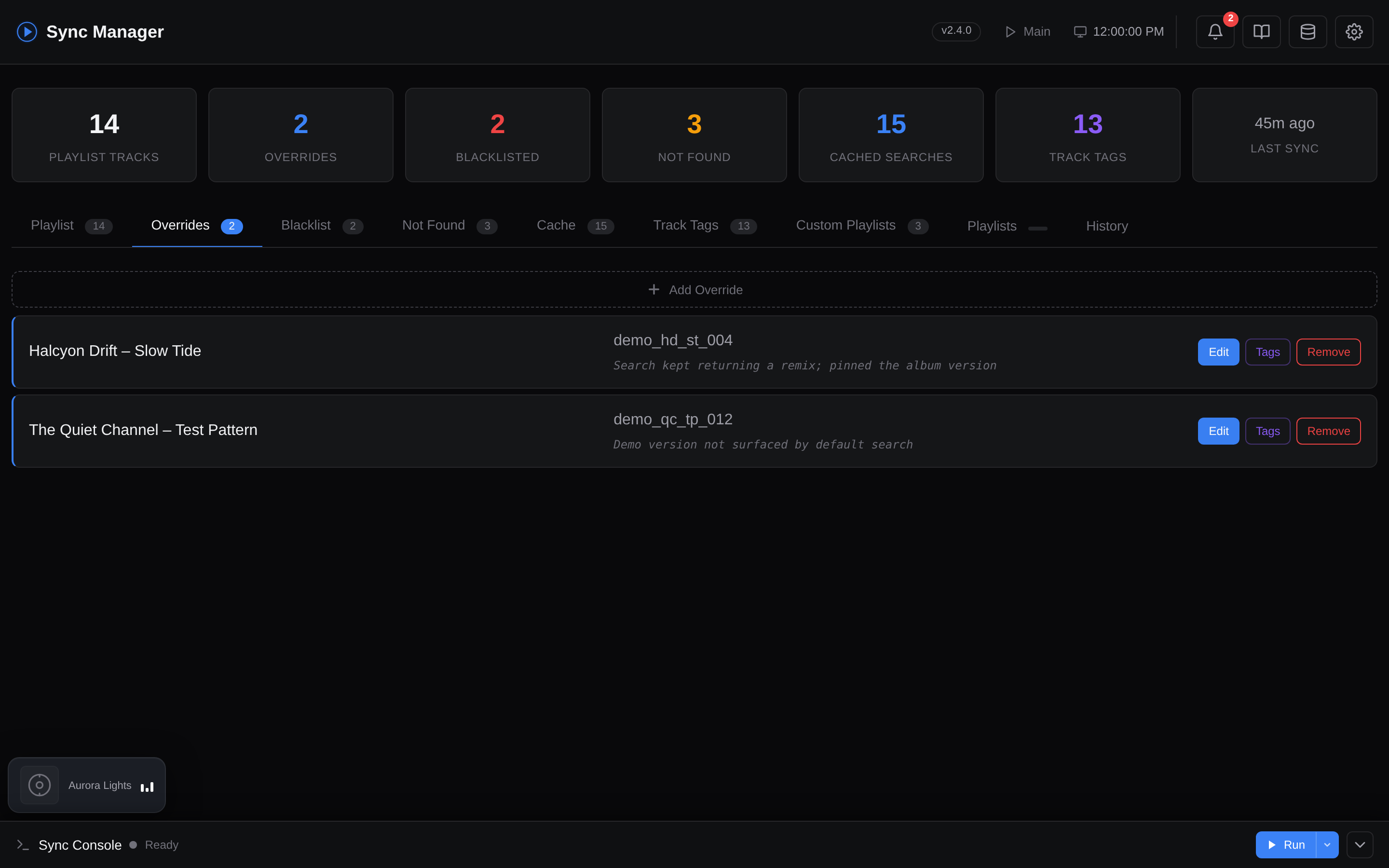
Docker: Use the web dashboard - the Overrides, Blacklist, and Not Found tabs let you manage these with a few clicks.
CLI: Edit config/search_overrides.json directly.
Screenshot: Overrides tab
Setup
# Create the overrides file (if it doesn't exist)
cp config/search_overrides.json.example config/search_overrides.json
Adding an Override
Find the video ID from a YouTube Music URL - it is the part after v= (e.g., https://music.youtube.com/watch?v=dQw4w9WgXcQ → dQw4w9WgXcQ):
{
  "_overrides": {
    "rick astley|never gonna give you up": {
      "artist": "Rick Astley",
      "title": "Never Gonna Give You Up",
      "video_id": "dQw4w9WgXcQ",
      "reason": "Search found wrong version"
    }
  },
  "_blacklist": {
    "artist name|unwanted track": {
      "artist": "Artist Name",
      "title": "Unwanted Track",
      "reason": "Don't want this in playlist"
    }
  }
}
Blacklisting
Blacklisted tracks are excluded entirely from playlist generation. They are checked before overrides and the search cache, so a blacklisted track will never appear in any playlist regardless of other entries.
Resolution order
track blacklist → artist blacklist → overrides → search cache → YouTube Music API. Both blacklist checks (see Blacklisting an Artist below) run first, so a blacklisted track or artist never reaches an override or the cache. Overrides and blacklist entries never expire (you remove them manually), and all three also apply to custom playlists.
Blacklisting an Artist
To exclude every track by an artist, add an entry to _blacklist_artists. Keys are the lowercase artist name; tracks are matched and skipped regardless of title:
{
  "_blacklist_artists": {
    "unwanted artist": {
      "artist": "Unwanted Artist",
      "reason": "Never want this artist in any playlist"
    }
  }
}
The artist blacklist is checked alongside the track blacklist (before overrides and cache). Custom playlists support a per-playlist blacklist_artists array that works the same way.