The desktop app
The app runs on your gaming PC and lives in the tray. Every clip OBS saves goes into your library, and the app's window shows that library with the editor, montages and everything else. Paired with a server of your own, one key also puts a share link on your clipboard.
This page covers the app once it runs. To install it, pick a guide in Setting up reel.
Which download
Every installer is on reel's releases, each with its
.sha256. A server you run offers the installers of its own version under Settings, Devices, each
with a line saying who it is for.
| Download | File | For |
|---|---|---|
| reel, for Windows | reel_<version>_x64-setup.exe, about 200 MB |
a PC without OBS, or one where reel should run its own: OBS comes with the app, unmodified, and the app sets it up |
| reel light, for Windows | reel-light_<version>_x64-setup.exe, about 70 MB |
a PC with OBS set up already: the app connects to that OBS |
| reel for Linux, the AppImage | reel_<version>_amd64.AppImage |
any distribution, one file: make it executable and run it |
| reel for Debian and Ubuntu, the .deb | reel_<version>_amd64.deb |
the same app as a package, installed with apt |
What each needs:
- Windows: Windows 10 or 11, 64 bit. Both installers install the same app for your Windows user, called reel in the Start menu and in Apps, and bring Microsoft's WebView2 along when Windows lacks it; reel light asks for no administrator rights, reel asks once, for its firewall rule. They are not code signed yet, so SmartScreen warns the first time (Windows protected your PC). One installed over the other keeps your settings, your library and the pairing, and its page says Switch to reel or Switch to reel light. reel light over reel removes the OBS that came with it, and its installer asks before it does (All in one). Settings, App names the package under Versions, and About next to the version.
- Linux keeps one name for both files: reel, the AppImage or the
.deb, with the OBS you install yourself. - Linux: a 64 bit PC with glibc 2.36 or later: Arch, Fedora, Debian 12, Ubuntu 24.04 and
later. Ubuntu 22.04 is too old. There is no OBS inside the AppImage or the
.deb: reel runs the OBS you installed from your distribution or Flathub a second time, with settings of its own, or connects to yours, as you choose (Linux). The AppImage carries what its window plays video and sound with (GStreamer and its plugins, its GL plugin among them, so the video goes to the screen without a copy); the.debinstalls your system's (gstreamer1.0-plugins-good,gstreamer1.0-libavandgstreamer1.0-glamong them).
Standalone or connected
The app runs in one of two modes, set under Settings, Connection, Mode:
| standalone | connected | |
|---|---|---|
| The library | on this PC, inside the app | on your server |
| Sending a clip | Show in folder, or download a copy under a size, and drag the file into the chat | paste a share link, copied with one key |
| What you need | the app alone | a reel server, paired with the app |
| Hotkeys | Save a clip | Save a clip, Save and share, Share the last clip, Upload the last clip |
A new install starts standalone. An app that was set up before keeps its mode through an update.
In standalone, the window shows the library on this PC with the same pages a server has, minus what only a server needs: share links (the clip page's Share, a collection's link, Copy link in a clip's menu and in the Select bar, the Shares page), members and sign-in, the Devices page, the public address, notifications to ntfy or a webhook, external storage, the incoming folder, the first run and the restart. Their addresses answer "Not in standalone" with what to do instead. Settings is the same, with the pages a library on one PC has: its nav lists Essentials, this PC's pages without Uploads, then the library's, reel on this PC: Library and storage, Library folder, Ingest, Encoding, Copies under a size, Imports, General, Appearance, Advanced and About.
A server can be paired while the app stays standalone: Upload to the server on Settings, Status then sends a clip to it. Standalone has the whole picture, and how to add a server later.
What runs, and when
- At sign-in. The app starts with your Windows or desktop session, hidden in the tray, without a window (Settings, Start with Windows, on Linux Start at logon, on by default). On Windows that is a Run entry for your user; on Linux an entry in your desktop's autostart.
- In the tray. Double-click reel's icon to open the library. Its menu's first line says what the app does in the words of the window's bar (ready, last 60 s, recording, 12 min, clips paused, OBS not connected, uploading, 64%), as does the icon's tooltip. Then Last clips (each with Open and Copy link), Save clip, Save and share, Record a session, Pause clips, Share the last clip, Pause uploads, Open library, Open settings, on Windows with the OBS that came with reel Open OBS or Hide OBS, and Quit. When an update is ready, Install reel with the new version is there too. In standalone the menu keeps what makes sense on one PC: that line, Last clips (each with Open), Save clip, Record a session, Pause clips, Open library, Open settings, OBS's entry and Quit, with Pause uploads once a server is paired. For a tray whose icons are all one colour, Settings, App, Tray icon shows reel's mark alone in white or in black. On Linux, reel's own OBS has a tray icon of its own, which opens its window.
- Pause clips, in the tray and in the menu of the window's bar, stops OBS's replay buffer: OBS no longer encodes, and the buffer gives back its memory. OBS stays open, so Resume clips starts the buffer again at once. While paused, the bar, the tray and its icon's tooltip say clips paused, the bar with Resume beside it, Save clip and Save and share are off and say why, and the Save hotkey saves nothing but says so. The pause lasts until you resume, or until the app starts again: a new start always records.
- The window. Closing it (the X) ends the window and the WebView that draws it; the app goes on in the tray, and opening the window again builds a new one in about a second. Started at sign-in, the app makes no window at all until you ask for one. How light it is has the numbers.
- When a clip is in, a notification says so. Connected, it is "Clip uploaded", with Copy link (it makes a link if the clip has none) and Open, which opens the clip's page in the window. In standalone it is "Clip in the library", with Open. The buttons work from Windows' notification centre later too, even after the app was closed: the app starts and does it. On Linux the buttons show where the desktop's notifications have buttons (GNOME, KDE and most others); elsewhere the tray has both.
- A second start (from the Start menu, the desktop's launcher, or the AppImage again) opens the window of the app that is already running. There is never a second app.
- Quit from the tray ends the app, and reel's own OBS with it when it runs one. The window and the tray icon go at once; the app stops OBS behind them within a few seconds.
The window
The window shows reel's pages (Library, Collections, Shares, Jobs, Settings): your server's, signed in as you, or in standalone the library on this PC, without Shares. Its header is the one a browser shows: the pages, the search, and the menu under your initial, which has Upload a file (u on any page; the library has Upload at the end of its own row). What this PC does is in a bar along the window's foot:
- On the left, the state in a word or two: ready with how much OBS keeps (last 60 s) and the save hotkey beside it, recording, clips paused, OBS not connected, connecting to OBS, replay buffer off, uploading and how far, uploads paused, not paired, server unreachable, OBS stopped, no clip saved, error, or the step of the work on a clip. Its dot, and a line along the bar's top, are red while a session records and amber while clips are paused or OBS is not there. When nothing on this PC wants a word first and the server has something to look at (its disk, ffmpeg, the database), the bar says server warning or server error; in standalone, library warning or library error.
- A button after the words ends the state or shows why, where one can: Resume (clips, or uploads), Start OBS (reel's own OBS, after reel stopped starting it), Settings (the page with the answer), Status, Retry, Pair and Log.
- On the right, Record starts a session recording and stops it, with its hotkey beside it in a window 1280 px wide or more; while one runs it shows a red square, the time and Stop.
- The bar's menu opens from its words or from ... at its right, above the one you pressed. Its first line says the state in a sentence. Then Save clip, Save and share and Share the last clip (connected), each with its hotkey: they do what the hotkeys do, and while one cannot run it is off and the menu says why. Save clip has OBS save the replay, which goes into the library, or up to the server like any clip; Save and share also copies the clip's link once it is up. Then the Pause clips and Pause uploads switches, a line each about OBS, the Server and the Versions, Status page and Updates. In standalone the server's line is the Library: on this PC, where it lives, and whether reel on this PC runs; its dot turns red only for a check of the PC's own (its room, ffmpeg, the database), and Pause uploads shows once a server is paired. Esc closes the menu, and the keyboard reaches all of it.
- Settings opens on Essentials: what is set and the few settings most people change, each with what it costs. Its nav lists every other page, this PC's and then the server's (in standalone, the library's). Ctrl+, opens Settings from anywhere in the window; on a window 1600 px wide or more it opens beside the page you were on (The app's pages).
The window has no address bar. A clip's page has its own back button above the player, and the mouse's back and forward buttons, Alt+Left and Alt+Right walk back and forth through the pages, the app's own included.
A download in the window (a clip's or a version's Download, a copy under a size, an animated picture, Download on a link's page, the zip of picked clips) goes to your Downloads folder. A note above the bar shows its name, size and progress, then where it was saved, with Show in folder and Open, or why it failed. In standalone, a file already in the library is not downloaded: Open and Show in folder take it where it is (The files are on this PC).
When the server cannot be reached, the window shows the app's own page instead: what went wrong in words (for example "No answer from the server" or "The connection is not trusted"), Retry, and the app's settings. The app tries again by itself and keeps the clips it finds meanwhile.
Recording a whole session
The replay buffer keeps the last minutes; a session recording keeps all of it, from when you start it until you stop it. Start and stop it with Record in the window's bar, Record a session in the tray, or its hotkey (Alt+F9 by default). The recording goes into the library like a clip, named after its game and when it started, and marked session recording on its card next to its length. Connected, it goes up to the server once it has stopped, as any clip does, and its upload waits while a game has the screen when uploads do.
- While it runs, Record shows a red square, the time and Stop, and the bar says recording with a red line along its top; the tray's icon has a red dot, and its first line and tooltip say recording and for how long (recording, 12 min). Save clip still saves replays meanwhile.
- Reminders, so a recording is not forgotten for hours: every 30 minutes a short sound and a notification, "Still recording a session". The sound is what reaches you in a game in full screen, where Windows holds notifications back. Settings, Session recording has Remind every (in minutes, 0 for none) and the reminder's sound (on or off, its volume, a WAV of your own), which also plays when a recording starts. A PC that slept through several reminders gives one when it wakes.
- What it costs: OBS records with the encoder the replay buffer already runs, so a recording costs room on the disk, not a second encode. At Smooth (25 Mbit/s) an hour is about 11 GB, at Light (12.5 Mbit/s) about 5.6 GB.
- It stops by itself before the disk is full: when the disk OBS records to has less than 5 GB left, or in standalone when the library would have no room left to take the recording in. A notification says so, and the recording so far goes into the library.
- If OBS stops mid recording (a crash, your own OBS closed, or a change under Settings or Settings, Capture that starts reel's OBS again), what it wrote is kept and goes into the library, and a notification says so.
- Quit stops the recording first, so its file is whole; it does not ask. A recording you started in your own OBS goes on there. An update waits to install until the recording has stopped.
- A recording started in OBS itself counts as a session recording too: the window and the tray show it, and its file goes into the library as one.
- Keep the last never cuts a recording, and Share the last clip and Upload the last clip mean the last replay, not a recording.
- From a desktop's shortcut or the command line:
--record-sessionstarts one, or stops the one that runs;--start-sessionand--stop-sessiondo one of the two.
With a server, an upload over the server's Upload size limit (Settings, Imports; 8 GB unless changed) is refused: the app says so and keeps the recording on this PC. Raise the limit for long recordings. The server makes no preview video of a session recording by itself; a link to one plays the recording.
The app's pages
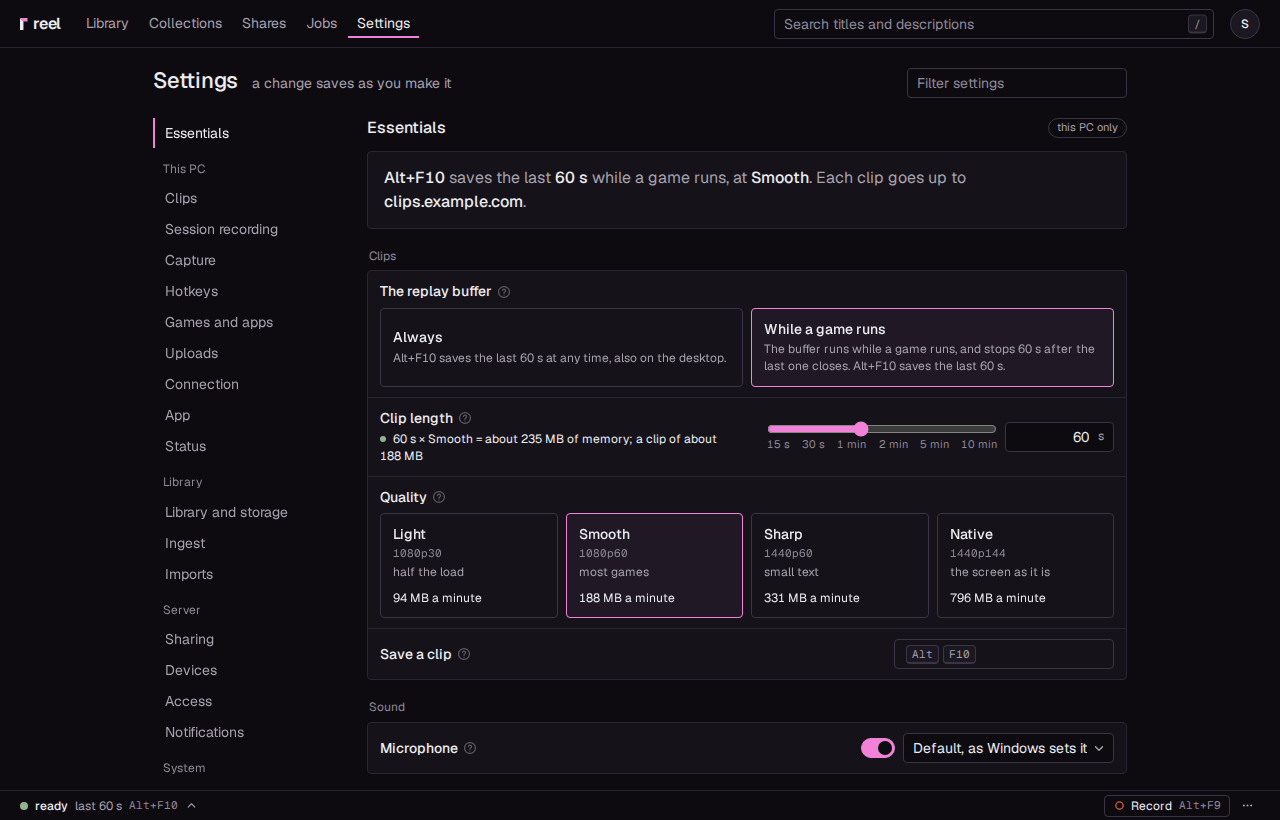
Settings opens on Essentials: a sentence of what is set (the key that saves a clip, how long a clip is, when the replay buffer runs, the quality, and where a clip goes), then the settings most people change, each with what it costs:
- The replay buffer: Always, or While a game runs (Games and apps),
- Clip length, with the memory the replay buffer takes and the size of a clip,
- Quality, four presets, each with the size of a minute of clip,
- Save a clip, its key,
- Microphone,
- connected, Upload: every clip, the last one on its key, or by hand,
- Start with Windows (Start at logon on Linux).
With your own OBS, Clip length is OBS's replay length, and the picture and the microphone are OBS's own: Essentials says so, and points to Capture.
The nav on the left lists every page of Settings: Essentials, then This PC, the app's own pages, kept on this PC, each PC with its own; then the server's pages under Library, Server and System, kept on the server, the same for every PC and browser. In standalone the library's pages follow under Library, with Library folder and Encoding among them. A server's page opens in the window with the same nav and the same head, so going from one page to another changes the page and nothing around it. In a narrow window the nav is a list at the top of the page. Back and Forward come back to where you were on a page; a page opened from the nav starts at its top.
On a window 1600 px wide or more, Settings opens beside the page you were on, along the window's left edge under the header, and that page stays as it was: scroll it, open a clip, go to Jobs, with Settings open beside it. From 2200 px wide Settings there has its nav and its page as on its own; narrower, the nav is the list at its top. Its ×, Esc (in Settings or on the page beside) and Settings in the header close it. Back and Forward walk Settings' pages in Settings, and the other pages on the page beside. Under 1600 px Settings is the window's page, as above. Settings follows the window's width: opened on a narrow window, it moves beside the page you opened it from once the window is 1600 px wide or more, and a window made narrower again shows it in full.
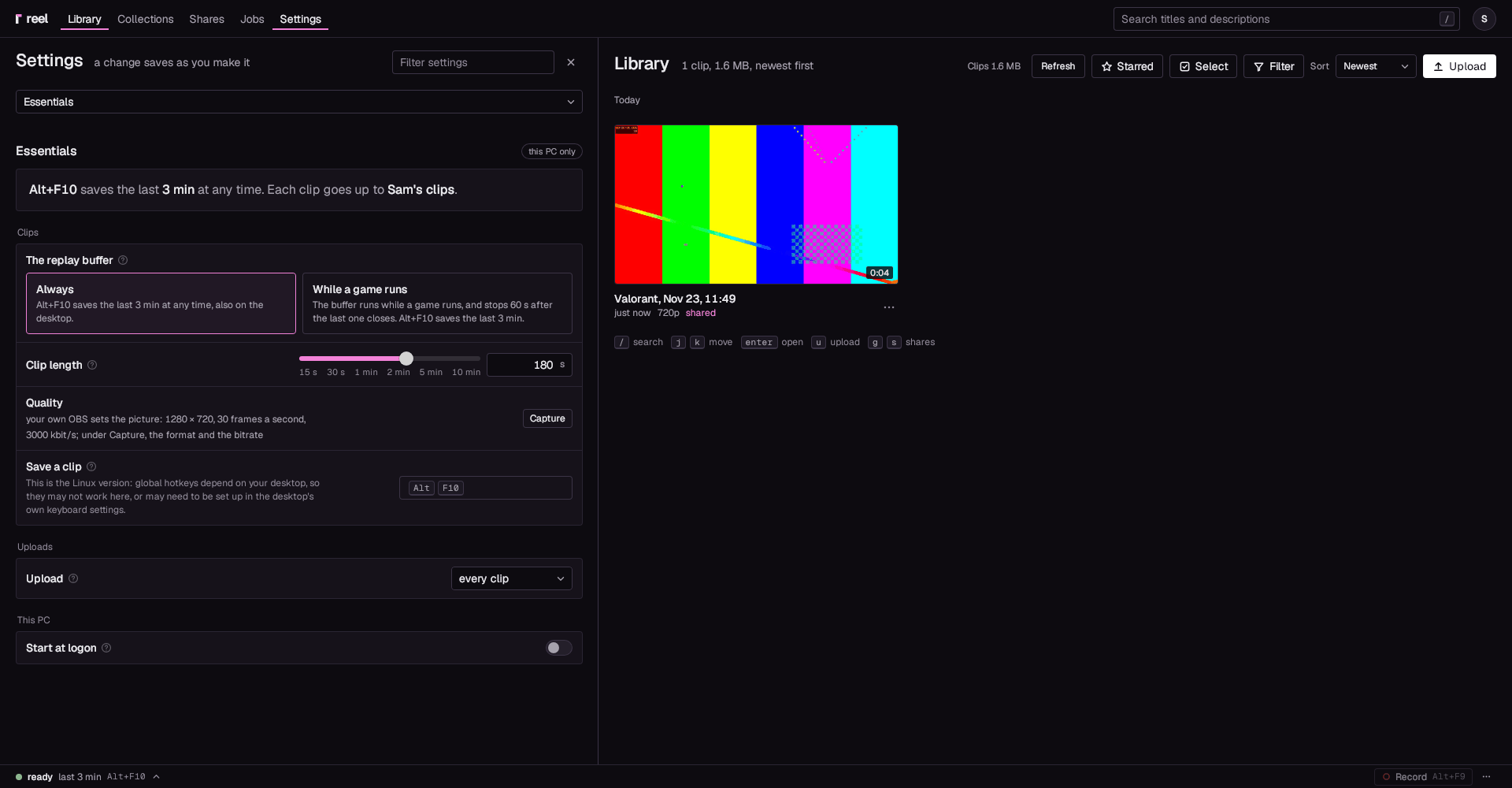
A setting shows its name and its control; the small question mark beside the name says what it does (hover it, or click it to keep it open), and its More in the docs link lands on the setting's entry in Settings, which explains every setting of every page.
| Page | Where | What it holds |
|---|---|---|
| Clips | This PC | saving a clip now, what each clip keeps, the keys and the sounds of a clip, the clips folder and what stays on this PC |
| Session recording | This PC | recording a whole session, by hand or with a game, and its reminders |
| Capture | This PC | the picture, what OBS captures, the sound and its tracks, the OBS behind it, how reel finds a new clip |
| Hotkeys | This PC | every key of the app; see Hotkeys |
| Games and apps | This PC | which programs are games and the name each gives its clips, Steam, Discord, the grace period; see Games and apps |
| Uploads | This PC, connected | the upload key, the waits while a game has the screen, the bandwidth and the chunk size; see The waits |
| Connection | This PC | connected or standalone, the server, the device's name, the pairing |
| App | This PC | the tray icon, new versions, the versions in use, about the app |
| Status | This PC | the connections, the queue, the last clips, the log |
| Library folder (standalone) | Library | where the library is on this PC, a copy of it, its cap |
| Encoding (standalone) | Library | the GPU encoder and the copies on it; see The waits |
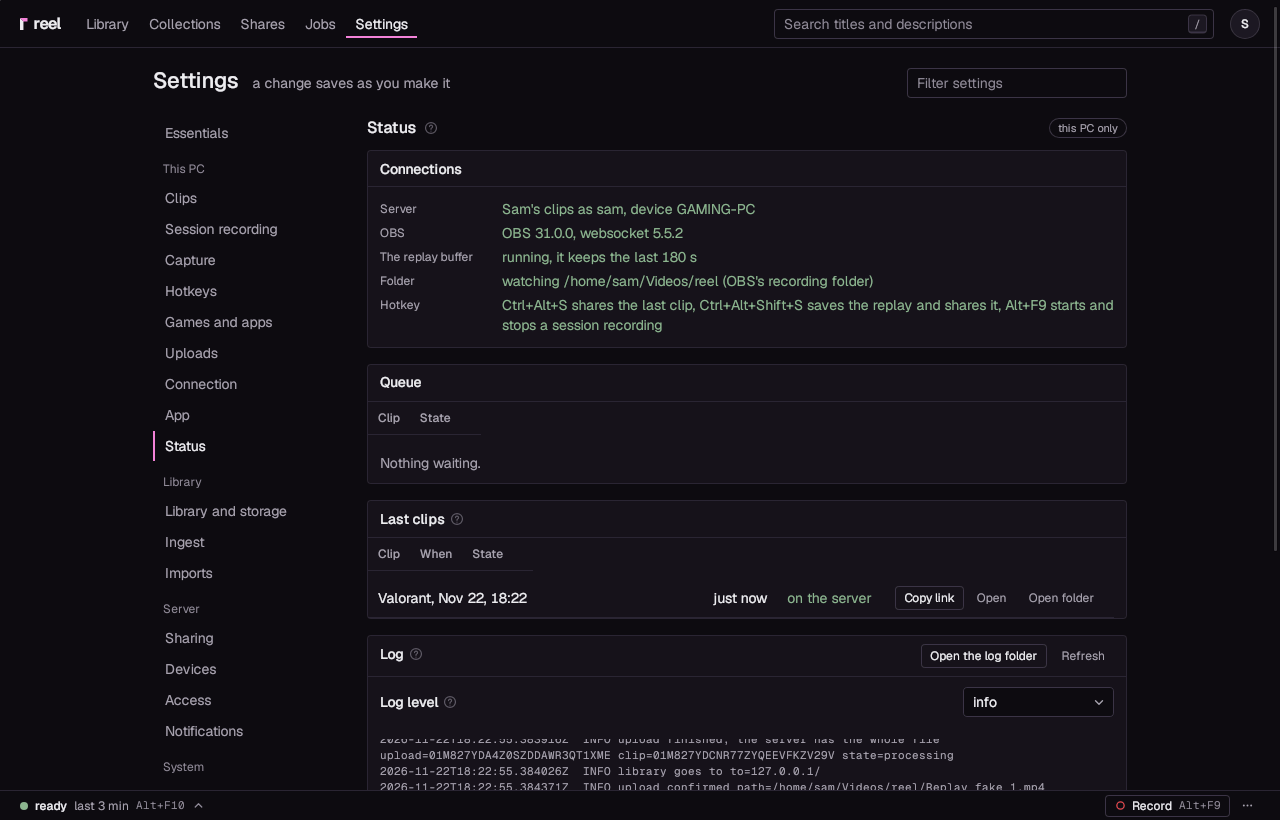
Every change saves as you make it. The pairing's token never goes into a file the app shows or into the log: on Windows it lives in the Windows Credential Manager, on Linux in a file only your user can read, in the app's settings folder.
Hotkeys
The five hotkeys are all on Settings, Hotkeys, and each also sits with the settings it belongs to: Save a clip under Essentials, Save and share and Share the last clip under Clips, Upload the last clip under Uploads and Record a session under Session recording. A key set in one place is the same key in the other.
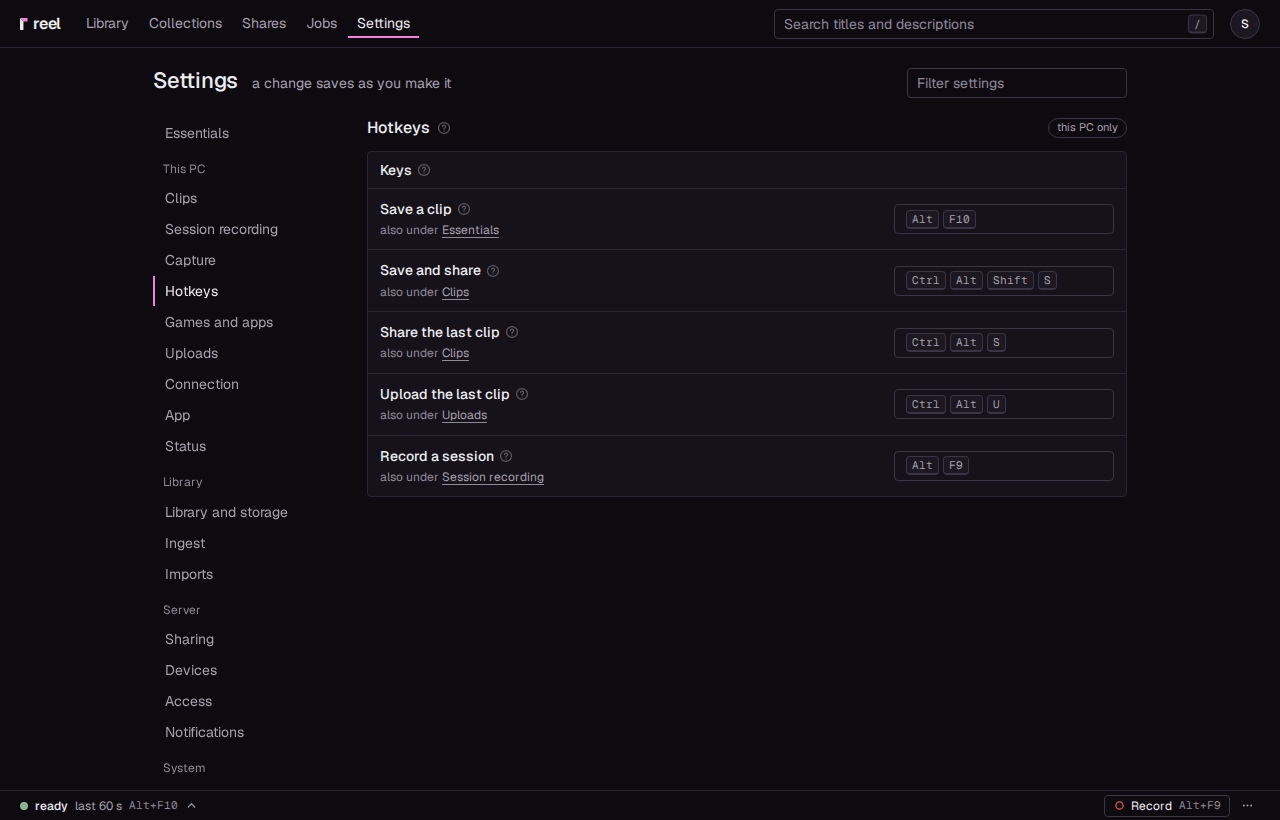
| Hotkey | Default | What it does |
|---|---|---|
| Share the last clip | Ctrl+Alt+S | asks the server for the newest clip's link, waits until its link preview is ready, copies it and plays the cue |
| Save and share | Ctrl+Alt+Shift+S | OBS saves the replay, the app uploads it, waits until its link preview is ready and copies the link |
| Save a clip | none (Alt+F10 after the setup) | OBS saves the replay; the clip goes into the library, or up to the server like any clip, without a link |
| Upload the last clip | Ctrl+Alt+U | with Upload set to the last, on its key; harmless otherwise |
| Record a session | Alt+F9 | starts a session recording, and stops the one that runs |
In standalone only Save a clip and Record a session are taken. The other three make or copy a link, or upload, and need a server; from a desktop's own shortcut or the command line they are refused with a notification saying so.
The "clip captured" sound plays the moment OBS takes the save, before it has written the replay, which for a long replay takes a few seconds. Press Save and share again while one is under way, and it saves another clip with the same sound; only the newest clip's link is copied, with one "link copied" sound (three presses: three "clip captured", one "link copied"). A press within a second of the last save counts as a double tap and does nothing. A save made with OBS's own hotkey sounds once OBS has written the replay.
To set a key, click its field and press the keys. A combination that Windows, the desktop or another app holds is refused ("Ctrl+Alt+S is held by Windows or another app; ..."), and the field keeps what it had.
On Windows the app takes the keys for the whole desktop, so they work while a game has the focus. One exception: a game that runs as administrator does not pass its keys to the app (see Troubleshooting).
On Linux global hotkeys depend on your desktop: they may not work, or may need to be set up in
the desktop's own keyboard settings. There you can bind a key to reel-desktop --save-and-share
(or --save, --share-last, --pause-recording, --resume-recording, --record-session). With the AppImage the command is the AppImage's path, which
Settings shows under Hotkeys (and under Save a clip on Essentials).
Updates
The app keeps itself up to date from the server it is paired with, or in standalone from reel's releases, and you see each step:
- From your server, or from the release. Paired, the server offers the app of its own version, so updating the server brings the new app to every paired PC. Standalone, the app takes the newest release from GitHub. Each app gets its own kind: reel stays reel, with its OBS, reel light stays reel light, the AppImage gets the next AppImage.
- Signed. Every installer is signed with reel's release key, and the app checks the signature against the key built into it before it runs anything. The signature names the installer's version, and the app takes it only as that version and only when it is newer than its own.
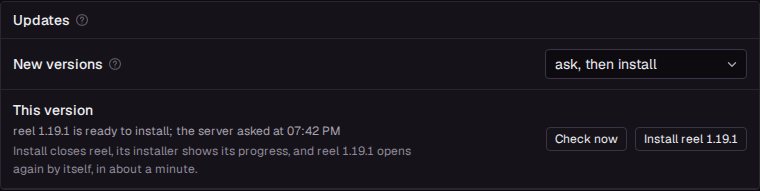
- When. Paired, the app asks its server 45 seconds after it starts, then every six hours. Standalone, it asks GitHub only when you ask: Check now, or by itself when Settings, App, Look for new versions on GitHub is on (the setup leaves it on unless you switch it off there): a minute after the start, then every six hours by the clock, once a day with New versions off (What leaves your PC). Check now under Settings, App, Updates asks at once. New versions there decides what happens with a version found without it: ask, then install (the default) asks in a notification with Install now and Later, and at the top of the window's pages while it is open (the library too, on this PC or on your server), and offers it in the tray menu and on the Updates panel, with the release notes. Later asks again a day later, or at the next start; install when the app quits downloads it and installs it when you quit from the tray; off offers it only on Check now.
-
Before you press Install, the panel says what happens next and about how long it takes. On Windows: reel closes, its installer shows its progress in a small window, and reel opens again by itself, in about a minute with reel and half a minute with reel light. A notification says the same as it starts.
-
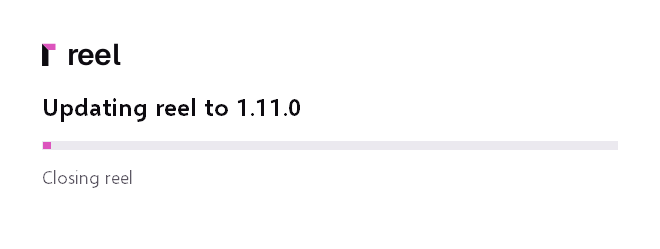
While it installs, a small window shows "Updating reel to" the new version ("Updating reel light to" with reel light), with a bar and one line of what it is doing. It has no buttons and closes by itself. reel waits for a clip on its way to the server before it starts, and, in standalone, for a move or a copy of the library for as long as it goes on: the Updates panel and the tray say "reel 1.12.1 installs once the library has moved". Stop on the move or the copy lets the update go on at once. While a session recording runs, the question and the panel say that Install waits for it to stop, and once pressed the panel and the tray say "reel 1.15.1 installs once the session recording stops".
-
Afterwards reel is back in the tray at once and says "reel is updated to" the new version, with the first line of what is new. If its window was open, it opens again on the page it showed. Your settings and the pairing stay as they were. When you update from 1.9, the small window shows too, and the notification names the version you came from.
- Install when the app quits shows the small window as reel quits, and reel stays closed until you open it. It tells you it is updated at its next start. A quit while the library moves or a copy is made does not install it: the next start fetches the update again, and the quit after that installs it.
- If an update does not install, for example because another program holds one of reel's files and you pressed Cancel at its question, the reel you had starts again and says why ("reel 1.10.1 did not install: ..."). Install under Settings, App tries again.
- The AppImage puts the new version in place of its own file and opens again by itself, in a few seconds.
- The .deb does not update itself: install the next version's
.debthe same way as the first. - Standalone asks nothing by itself. A standalone app of 1.11 or earlier cannot install an update: it says the new version is out, and Open the releases opens the page with its installers. Install that one by hand, once; from then on the app installs its updates itself.
The Versions panel on Settings, App names this app's version and kind, the server's, and the newest release. The Versions line of the bar's menu shows the version, or both while the app and its server differ ("app 1.4.1, server 1.4.0"). On the server, Settings, Devices, App updates has Offer app updates, on by default, and a Release token for a private fork.
Uninstalling
Open Windows Settings, Apps, reel, Uninstall, or in the app Settings, App, About, Uninstall reel..., which starts the same uninstaller and quits. Its page says what goes: the app, the OBS that came with it and OBS's settings, the desktop shortcut and the start at sign-in. Two boxes, both off, decide what else goes:
- Also remove reel's settings, logs and pairing: the app's settings in
%APPDATA%\reel, its log, the pairing with your server and the window's web data. Without it they stay for a later install, which then starts paired and set up as before. - Also delete the clips folder (its path and size on the box): the folder and every clip in it, for good; reel asks once more when you tick it. Clips already on your server stay there. A whole drive, a folder of Windows' own or of your profile (Videos, Documents, Program Files), a folder that holds one of them or reel, a link and a network folder are never offered: the page says the folder is kept, and why.
The last page says reel is removed, and whether your clips folder went with it.
The library on this PC, in %LOCALAPPDATA%\reel\library, stays either way. Delete that
folder yourself if you want it gone. Uninstalling has every case.
If Capture games that run as administrator was on, Windows asks once more, to remove the
copy in Program Files and its task. An uninstall without its page (uninstall.exe /S) keeps
the settings and the clips folder.
Turn Start at logon off (Settings), quit the app from the tray, and delete the
AppImage. The settings live in ~/.config/reel, and the app's data (the log, the list of clips
sent, the library on this PC) in ~/.local/share/reel; delete both if you want nothing left.
Your clips folder stays.
Quit the app from the tray, then run sudo apt remove reel. The settings in ~/.config/reel
and the data in ~/.local/share/reel stay for a later install; delete them if you want nothing
left.
On the server, Settings, Devices, Revoke signs the PC out for good, whether the app is still installed or not.