Updating
A new reel is one pull on the server, and the apps paired with it are offered the same version by themselves. A standalone app installs the newest release when you ask it to. This page covers updating the server, choosing which versions it follows, going back, and the desktop app.
Update the server
- Take a backup first (Backing up). An update can move the database forward, and the backup is your way back.
-
In the folder with your
docker-compose.yml, pull the new image and start reel again from it:Your folders, your settings and your links stay as they are. 3. reel brings its database up to date by itself at start. There is nothing to run. 4. Open the Status page (the menu under your name, Status). Its top panel names the version that runs, such as reel 1.9.1, and its update line says "you run the newest, 1.9.1".
Know when a release is out
The server asks GitHub for the newest release a minute after it starts, then once a day. When one is out, the Status page says so on its update line ("1.9.2 is out since 2026-11-10; you run 1.9.1") with a link to the release notes, and Check now asks again at once (an admin's button, there while Check for updates is on under Settings, Advanced; switched off, reel asks GitHub nothing).
- To be told without looking, set up ntfy or a webhook under Settings, Notifications and turn on the event an update is available there.
- To stop the daily check, turn off Check for updates under Settings, Advanced. The check asks GitHub for the repository's newest release, nothing else.
Choose which versions you follow
The image's tag in docker-compose.yml decides what
docker compose pull brings. Every release is published under four
tags:
| Tag | What it follows |
|---|---|
latest |
every release (the example compose file uses it) |
1 |
every release of reel 1, never a 2 |
1.9 |
the fixes of reel 1.9 only |
1.9.1 |
exactly that release, nothing else |
For example, to stay on reel 1.9 and take its fixes:
The tag dev is every change on the main branch as it lands, before a
release: it is for trying what is next, not for a server you rely on.
Going back to an older version
Each update can move the database forward, and an older reel refuses a database moved past it: it does not start, and its log says "migration ... was previously applied but is missing in the resolved migrations". To go back:
- Stop reel:
docker compose down. - Restore the database from the backup you took before the update (Restore a server).
- Set
image:to the older version, such asghcr.io/locko2901/reel:1.9.0. - Start it:
docker compose up -d.
Clips, links and settings made since that backup are not in it, so keep the backup from before an update until the new version has run a while.
The desktop app
Paired with a server
The server offers each paired app the app of its own version, so updating the server is what updates the apps. The app asks its server 45 seconds after it starts and then every six hours, and Check now under Settings, App, Updates asks at once. Every installer is signed with reel's release key, and the app checks the signature before it installs anything. The signature also names the installer's version, and the app installs it only as that version and only when it is newer than its own, so no server can pass an older installer off as a newer one.
By default the app asks first: a notification says "reel 1.10.1 is ready to install" with Install now and Later, and while the window is open the same question sits at the top of its pages (the app's own, and the library, on this PC or on your server). Later asks again a day later, or at the next start; Check now asks at once. Install reel 1.10.1 also appears in the tray menu and under Settings, App, Updates, which says what Install does before you press it. The app never opens or raises its window to ask. On Windows, reel closes, a small window shows the installer's progress, and reel opens again by itself about a minute later (half a minute for reel light), back on the page it showed and with a line of what is new. The AppImage takes a few seconds. New versions in the same panel can instead install it when you quit the app, or leave it to Check now.
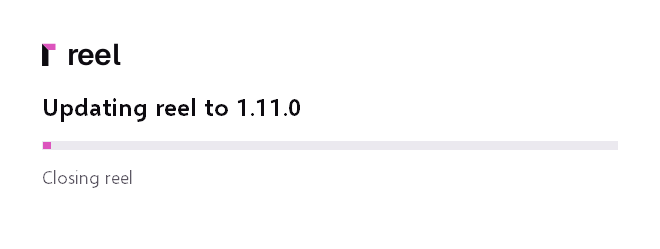
If an update does not install, the reel you had starts again and says why, and Install tries again. The desktop app has every step.
The .deb never updates itself, since installing a package needs root.
Download the next one from your server (Settings, Devices) and
install it the same way as the first:
On the server, Settings, Devices, Offer app updates (on by default) decides whether paired apps are offered updates at all.
Standalone
With no server, the app takes its updates from reel's releases on GitHub, and it asks only while you let it:
- Check now under Settings, App, Updates asks for the newest release when you press it.
- Settings, App, Look for new versions on GitHub asks a minute after the start, then once a day. While New versions is not off, the app asks again whenever the last answer is six hours old by the clock, so a new version reaches it within hours, also on a PC that sleeps at night. The setup's step New versions (in reel light's setup too) has the same switch, which and is on unless you switch it off there; with the setup skipped, or on an app set up before the setup asked, it is off until you turn it on.
When a newer reel is out, the update goes as it does for a paired app: the app takes the installer of its own package from the release (reel for reel, reel light for reel light, the AppImage for the AppImage), checks its signature against the key built into it, and Install puts it in place. New versions in the same panel decides what a newer release found by Look for new versions on GitHub does; Check now offers one either way. Until the release job has put the installers on a new release, the panel says the release has none for this app yet.
A standalone app of 1.11 or earlier cannot install an update by itself: its Updates panel says the new version is out and points at the releases page. Install that release by hand once, the same way as the first; from then on the app installs its updates itself.
- Windows: download the installer of the package you have from the releases page (Open the releases under Updates opens it), reel over reel, reel light over reel light (Settings, App, Versions names it), and run it. Its page says Update reel or Update reel light and names the version on this PC; press Update. It closes reel first, and your settings and your library stay.
- AppImage: quit reel and replace the file with the new one.
The .deb never updates itself: download the next one from the releases
page and install it with sudo apt install ./reel_<version>_amd64.deb.