The phone
Put reel on your phone's home screen and it opens like an app: full screen, without the browser's bars, with your library a tap away. On Android you can also share a video to reel straight from the gallery.
You need a reel server you can sign in to, at its HTTPS address (The server).
1. Install it to the home screen
Android (Chrome):
- Open
https://clips.example.comin Chrome and sign in. - Tap the menu (the three dots, top right), then Install app (on some phones Add to Home screen), then Install.
- Open reel from its new icon on the home screen.
iPhone and iPad (Safari):
- Open
https://clips.example.comin Safari and sign in. - Tap the Share button (the square with the arrow), scroll down, tap Add to Home Screen, then Add.
- Open reel from its icon on the home screen, and sign in once more. The home screen app keeps its own sign-in, apart from Safari's.
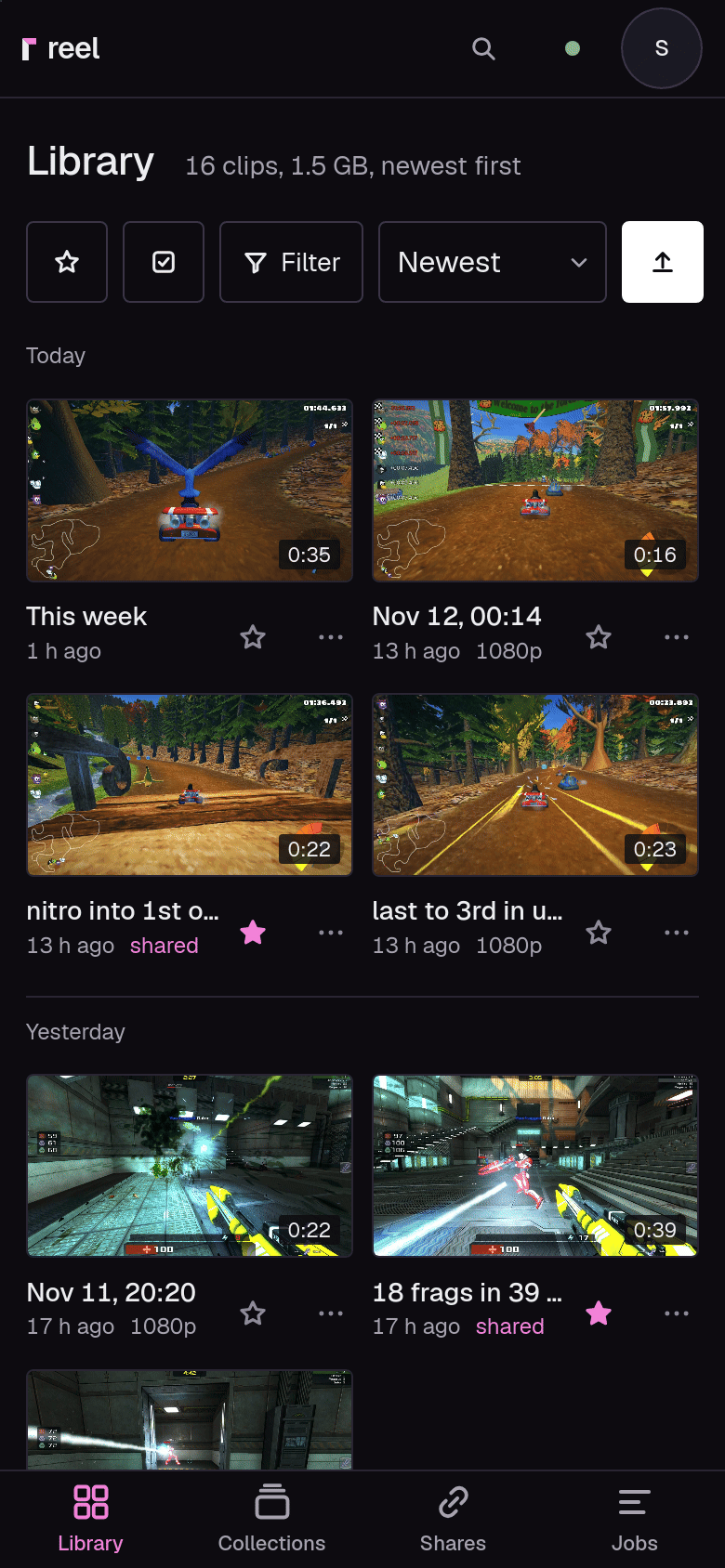
When it worked, reel opens without an address bar, with Library, Collections, Shares and Jobs at the bottom. Jobs shows a count while something is being worked on. Status, and Settings for an admin, are under the round button with your initial, top right.
2. Share a video to reel (Android)
- In the gallery, Google Photos or the Files app, open a video and tap Share.
- Pick reel in the list. It is there once reel is installed as in step 1.
- reel opens on Sending to reel and shows the upload's progress.
When it worked, the clip's page opens once the video is in and shows its processing. A minute later the clip is in the library like any other.
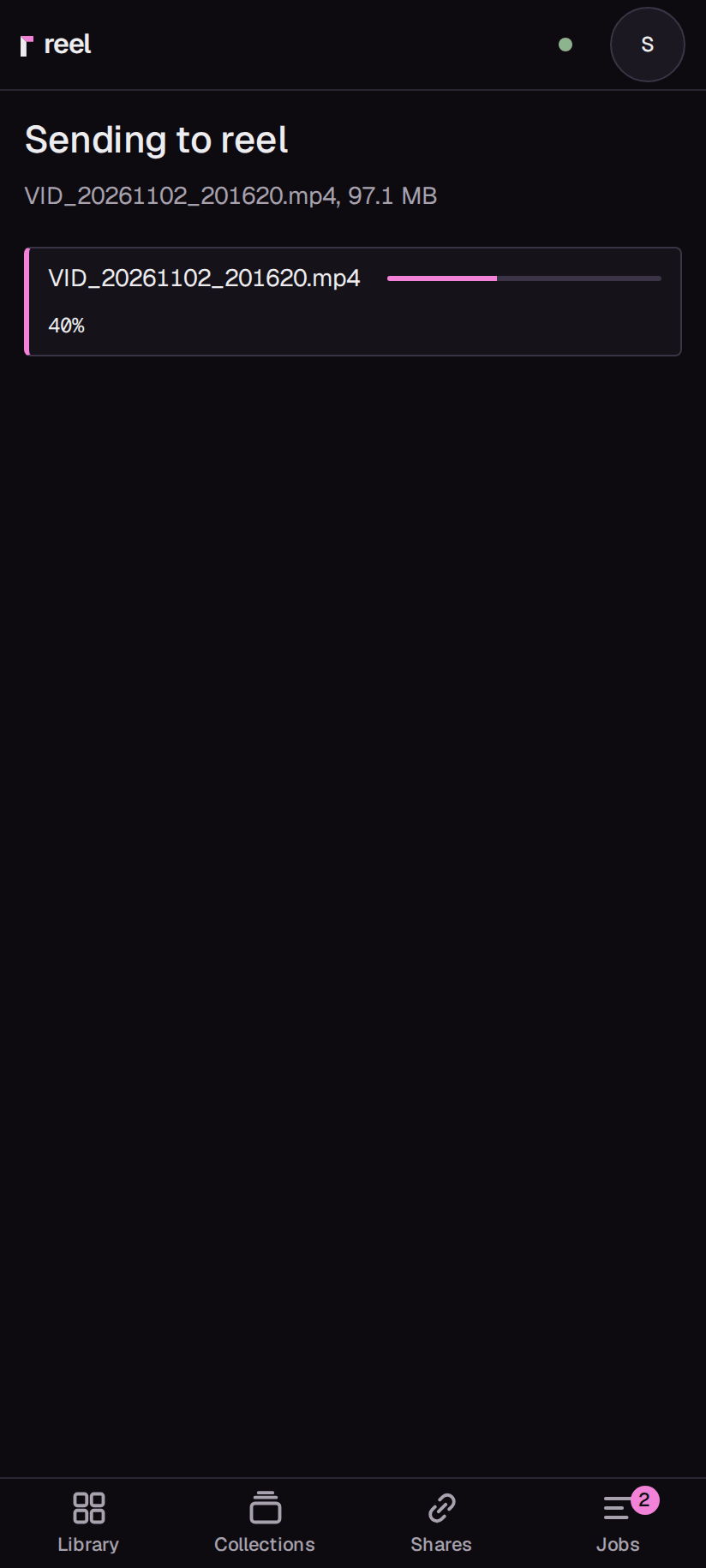
Several videos in one share go up side by side, and the library opens when they are all in. A file over the server's upload limit is refused before anything is sent, with the reason.
3. Upload from an iPhone
Safari does not let a web app appear in the share sheet, so on an iPhone you upload from reel itself:
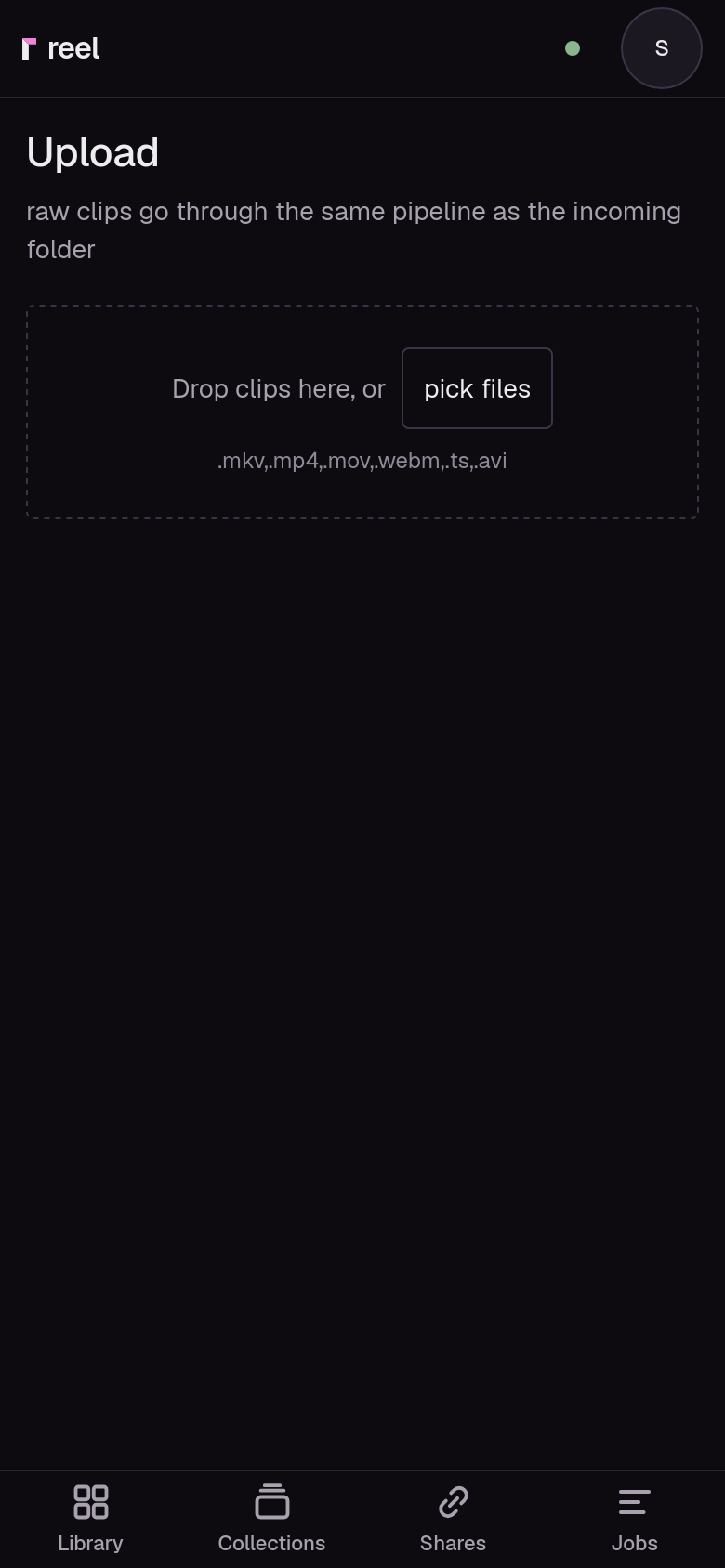
- Open reel and tap the upload button on the library's row (the arrow), or Upload a file in the menu under your initial.
- Tap pick files, then choose Photo Library or Files, and pick your videos.
The progress shows on the page. When a video is in, it is processed like any other clip.
Share from your phone
- A link: open a clip, tap New link under Share, then Create and copy, and paste it anywhere. Or, under Send, tap Send to an app: it hands the clip's newest link to a chat or a messenger through the phone's share sheet, and makes a link first if the clip has none.
- The file itself: under Send, pick the original or a size and tap Send the file. It goes to the app you pick through the share sheet. A copy under that size that does not exist yet is made first: tap again once it is ready. Sharing and links has more.
Good to know
- Big videos go up in pieces, so a long one passes behind Cloudflare too. The limit is the server's own, 8 GB by default. If the connection drops, share or pick the same video again and it goes on where it stopped.
- Always current: the installed app keeps only reel's stylesheet, scripts and icons for itself, never your clips or pages, so it always shows the server's current library.