Uninstalling
Removing reel takes a minute, and your clips stay where they are unless you choose otherwise. This page covers the app on Windows and on Linux, and the server.
Keep your clips first
To take clips with you, pick them in the library (Select, then Ctrl+A for every clip shown) and press Download in the bar: one zip, with a folder per clip named by its title (Several clips at once). Or back up the whole library (Backing up).
Windows
- Start the uninstaller, either way:
- Windows Settings, Apps, find reel, then Uninstall.
- In the app, Settings, App, About, Uninstall reel.... It starts the same uninstaller and quits the app.
-
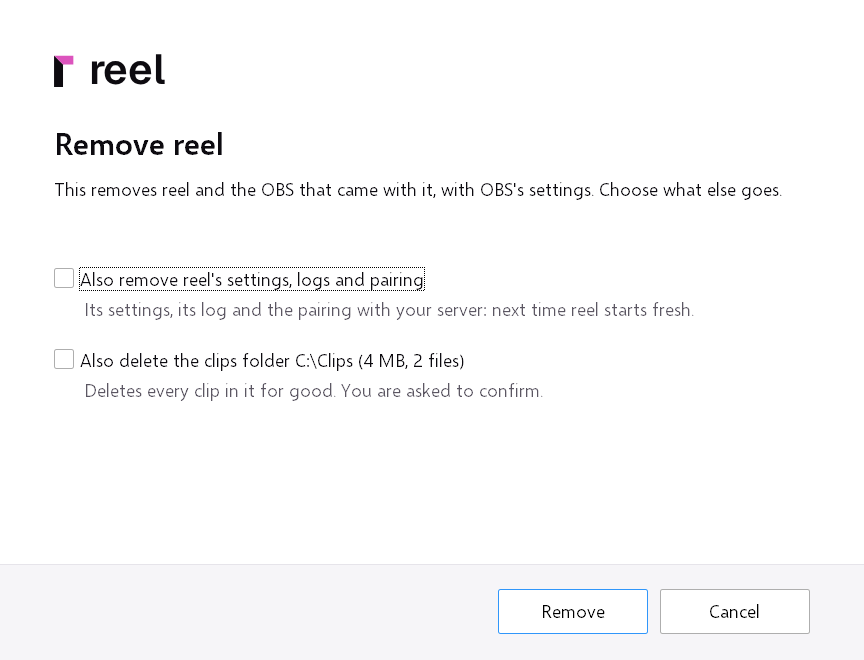
The page Remove reel says what goes in any case: reel, and with reel (the package with OBS) the OBS that came with it, OBS's settings included. reel light has no OBS of its own to remove. The shortcuts and the start at logon go with them.
-
Choose what else goes. Both boxes start off:
- Also remove reel's settings, logs and pairing: the app's
settings (
%APPDATA%\reel), its logs, the list of clips it sent, the pairing token in the Windows Credential Manager and the window's web data. Leave it off and a later install starts paired and set up as before. - Also delete the clips folder, with the folder's path and size on the box: the folder where OBS saved your replays, and every clip in it, for good. reel asks once more when you tick it. Clips already on your server stay there.
- Also remove reel's settings, logs and pairing: the app's
settings (
- Press Remove. Windows asks for administrator rights for what only an administrator may remove: the firewall rule that reel added for its OBS, and, if Capture games that run as administrator was on, the copy of OBS in Program Files and its task.
-
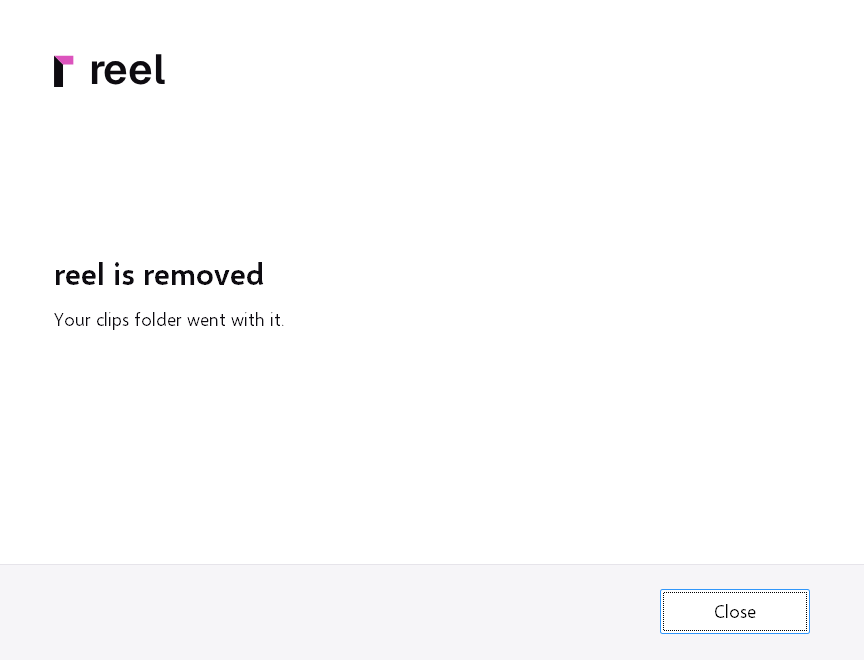
The last page says reel is removed, and that your clips are still where they were, or that your clips folder went with it. Press Close.
The clips folder is never offered for deletion when it is a whole drive, a folder on the network, a link, one of the folders of Windows or of your profile (Windows, Program Files, your user folder, Videos, Documents, Desktop and the like), or a folder that holds one of them or reel itself. The page then says the folder is kept, and why.
A standalone library stays in any case, in
%LOCALAPPDATA%\reel\library or in the folder you moved it to (Settings,
Library folder says which). To remove it too,
delete %LOCALAPPDATA%\reel after the uninstall, and that folder.
An uninstall without its page (uninstall.exe /S) keeps your settings
and the clips folder.
Linux
Your folders stay, for a later install:
| Folder | What is in it |
|---|---|
~/.config/reel |
the settings and the pairing token |
~/.local/share/reel |
the logs, the list of clips sent, the settings of reel's own OBS, and a standalone library |
~/.var/app/com.obsproject.Studio/reel |
the settings of reel's own OBS, with OBS from Flathub |
~/.local/share/applications/dev.lockoo.reel.desktop |
a hidden desktop entry the desktop's shortcuts know reel by |
Delete them for nothing to be left. Your clips folder stays either way.
The server
-
In the folder with your
docker-compose.yml, stop and remove the container:reel stops at once, and every share link stops working with it. 2. Remove its image:
With another tag in your compose file, name that one. 3. The folders stay until you delete them:
./data(the database and, by default, the library),./originalsand./incoming, and a Library folder elsewhere if you set one. reel writes them as user 1000, so delete them withsudo: -
Take away what you put in front of reel: its site in your reverse proxy, and its DNS name if nothing else uses it. With Link previews from external storage on, delete the previews under
reel/in your bucket, or the bucket itself: reel leaves them there.
Each paired app then says cannot reach the server. Uninstall it as above, or switch it to standalone, so new clips go into a library on its PC: Settings, Connection, Mode: standalone.